Preserve Outlook Cache File before Removing Outlook Account
Creation date: 14/12/2022 3:00 PM
Updated: 14/12/2022 3:40 PM
This tutorial explains how to preserve your outlook cache file (.ost) for your Outlook email account which contains a cached copy of some of your most recent data. You can take a copy of this file before removing your email account from Microsoft outlook.
Using Microsoft Outlook 2013, 2016 and 2019
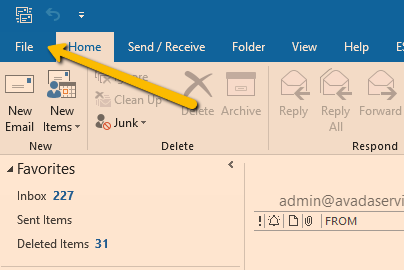
1. Click on the File menu in Outlook.
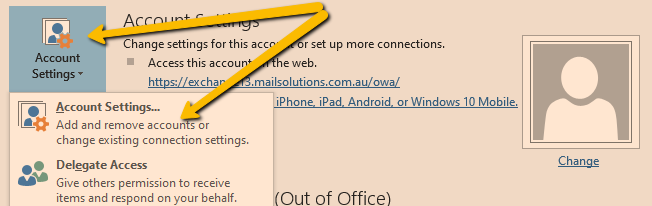
2. Click on Account Settings button and then choose Account Settings from the list.
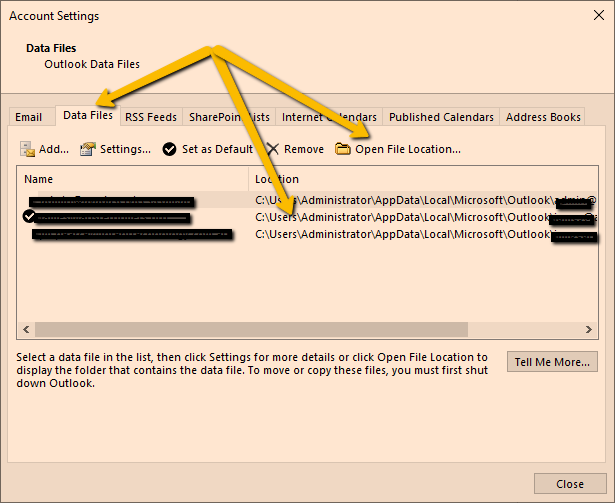
3. Click on the Data Files tab. Select the account from the list that you want to preserve the cache file (.ost) for. The account with the tick next to it is your default email account in outlook, however all outlook data files are usually stored in the same folder. You can see the folder location in the path column. After selecting the account, click on the Open File Location button.
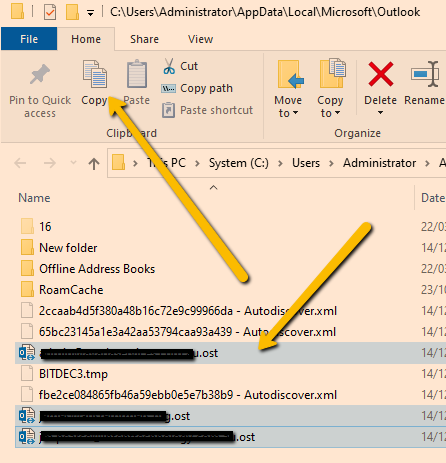
4. Windows Explorer will open the folder containing the Outlook Data Files. Look for all the files of the Type Outlook Data File in the list. There are three files in the screenshot below. Before you make a copy of these files you must close the Outlook Account Settings Dialog Window and then close the Microsoft Outlook Application first!
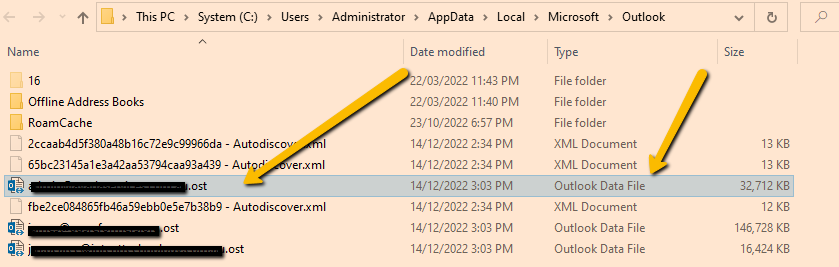
5. Select each Outlook Data File (.ost) file you want to copy. Hold down the Ctrl key with each mouse click to select multiple files at once. Then select the Copy Button in the menu (or you can right mouse-click your selected files and choose copy from the right-click menu). Remember to Close Microsoft Outlook First!
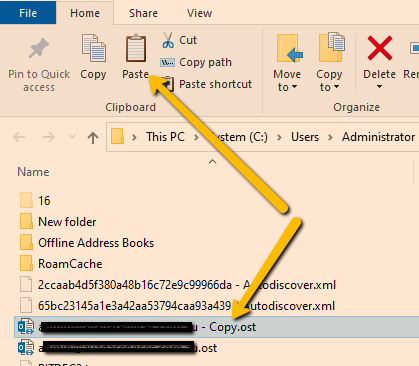
6. Now the Paste button should then be enabled. Click the Paste button in the menu (or from the right-click menu). Windows will create copies of your .ost files in this folder. (Note: Large data files may take a while to copy). Or can paste these files to another folder location on your computer if you wish or put them on a removeable USB drive.
The duplicate cache files in this folder have a - copy.ost at the end of the filename. If you paste them to another folder location on your computer they will have the same filename as the original file. Take note of the folder location where the copies are stored in case you need to find them later for recovery purposes!
DataImage50.png
DataImage3.png
DataImage93.png
DataImage27.png
DataImage15.png
DataImage46.png