Cisco AnyConnect VPN Client Setup on iPhone
Creation date: 28/06/2021 4:14 PM
Updated: 13/07/2021 1:34 PM
This tutorial explains how to setup the Cisco Anyconnect VPN client for use on your IOS device.
1. Use the App Store to install or update the Cisco Anyconnect client by searching for "anyconnect". Click the install or update button when you find the app.
2. Open Cisco Anyconnect on your device. On the Home tab click on Connections and the click on Add VPN Connection. If you already have a connection listed you can skip to Step 4.
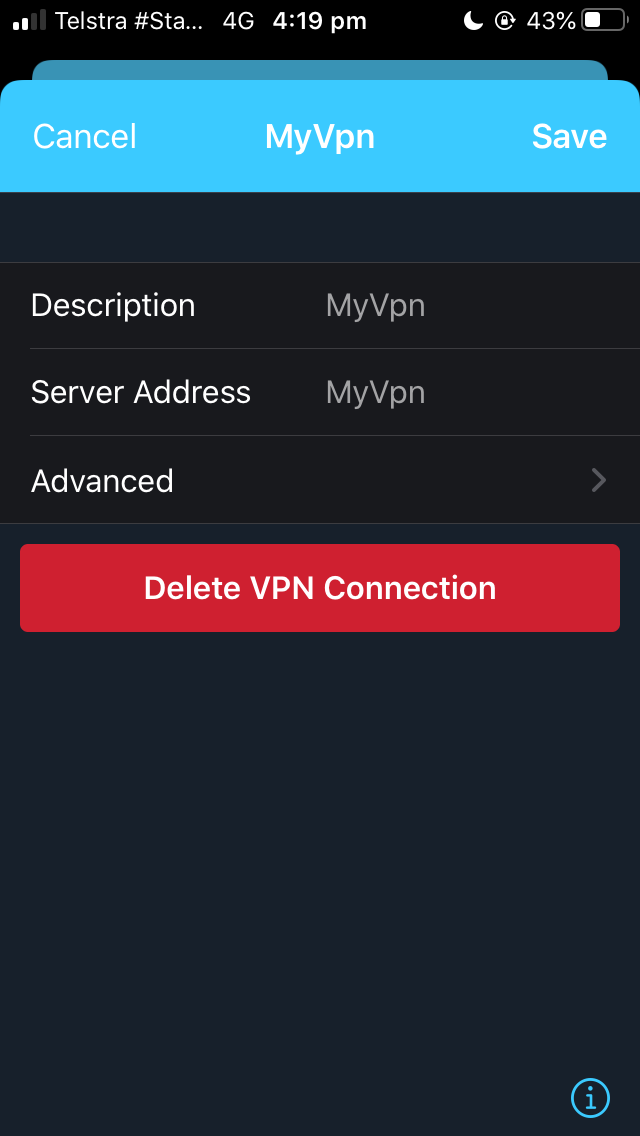
3. Enter any text you like in the Description and Server Address fields. Then click Save. You are not going to use this connection but you must create a connection before you can continue.
4. Once you have a VPN connection saved. Click on Diagnostics from the Home screen. Then choose the Profile option. Then select Import Profile
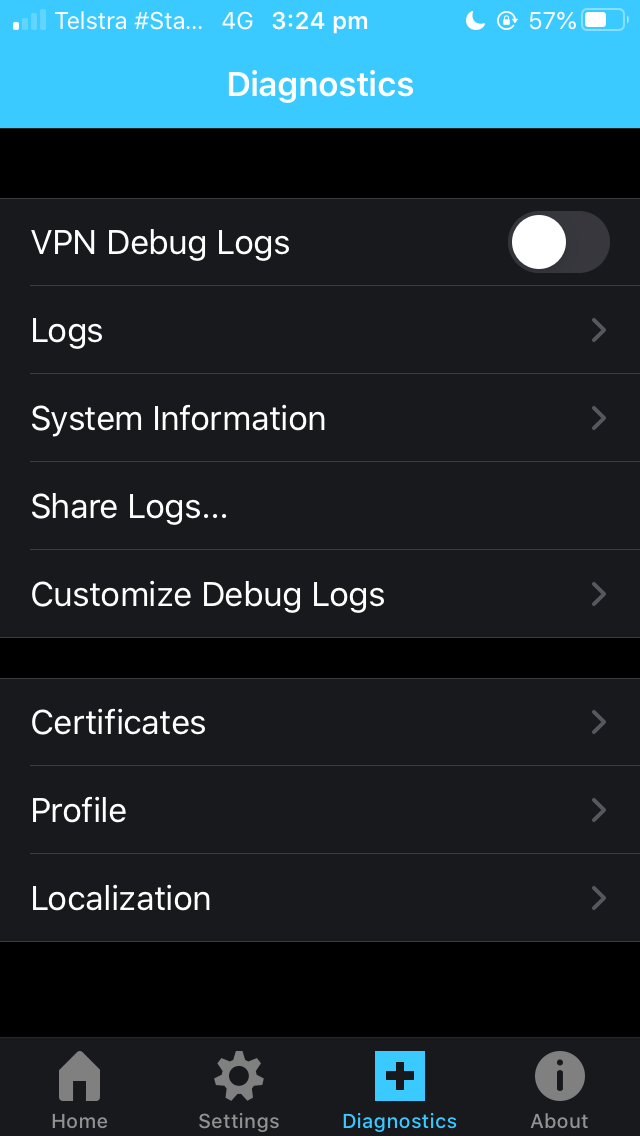
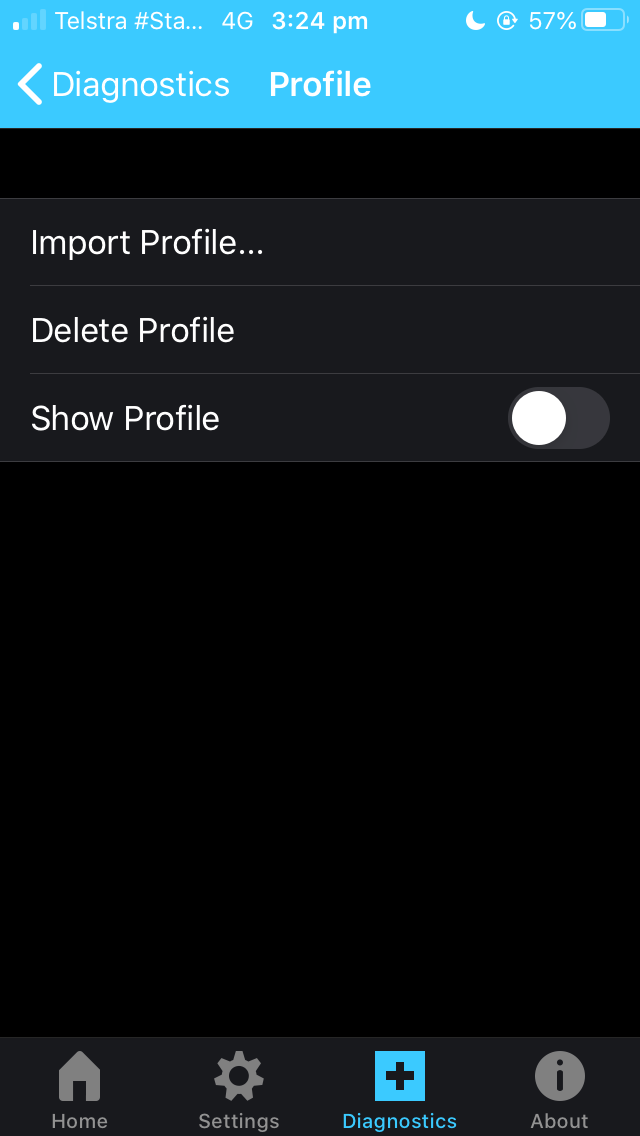
5. Enter the URL of the VPN Profile and press Enter. The URL is listed below. You must enter the spelling exactly right or the download will fail. Once the profile is imported you can select the Show Profile option to view the XML data for your new connection.
https://webvault.com.au/downloads/cisco/profiles/ios/vpncloud.xml
https://webvault.com.au/downloads/cisco/profiles/ios/vpncloud.xml
6. Now select the Home tab again and choose Connections. Select the Perth IPSEC VPNCLOUD option as your active connection.
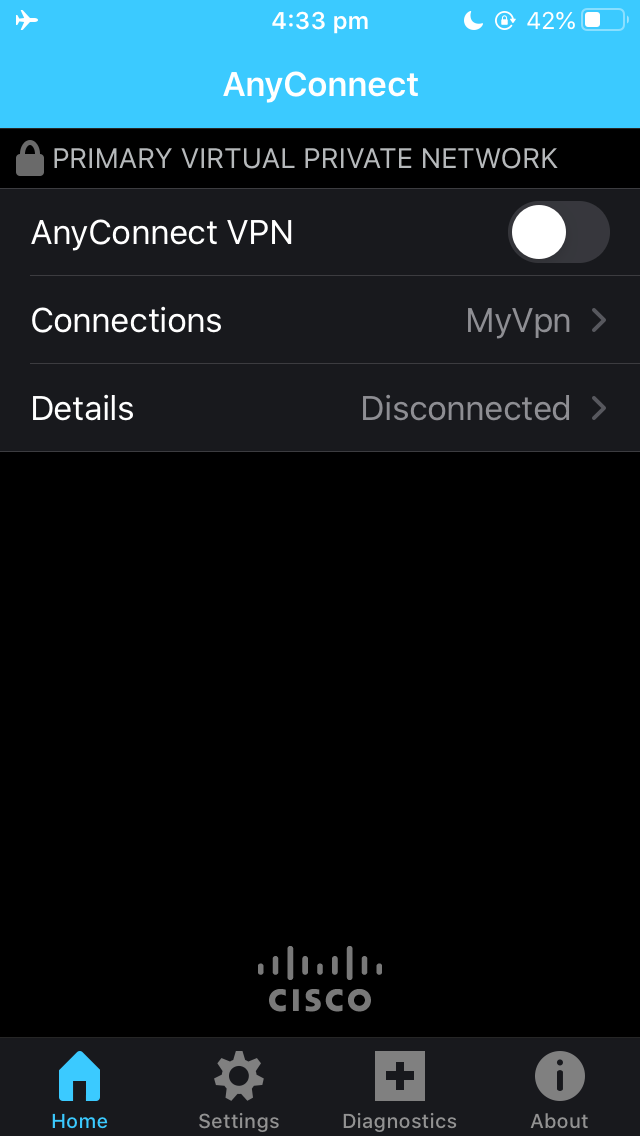
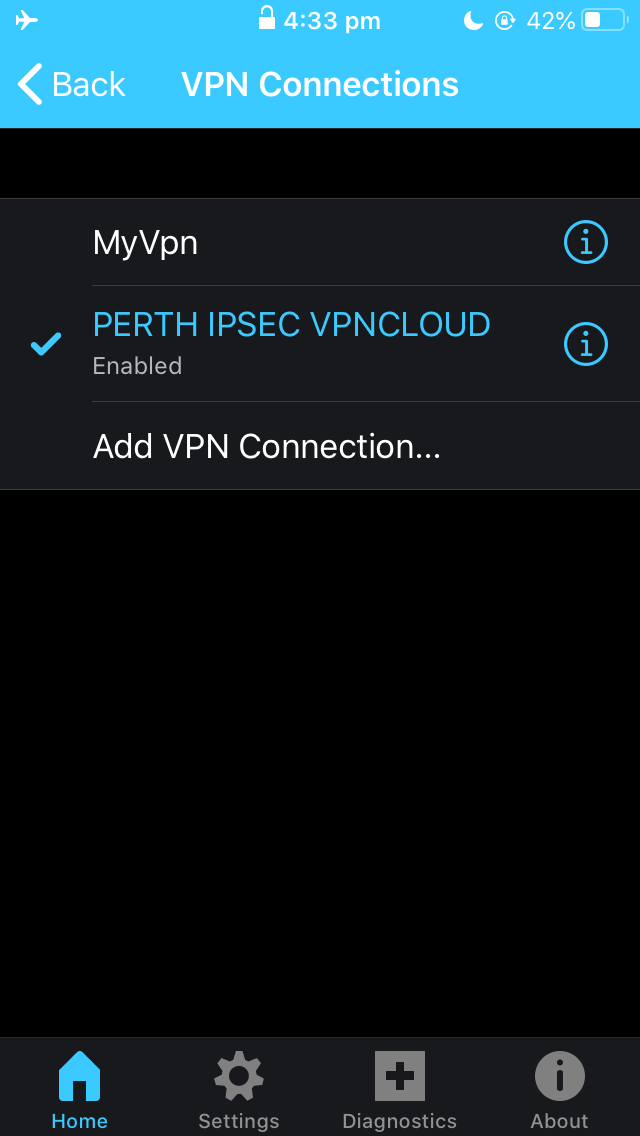
7. You can now optionally delete the connection you created in Step 2 by select the (i) button next to the connection and choosing the Delete VPN Connection button.
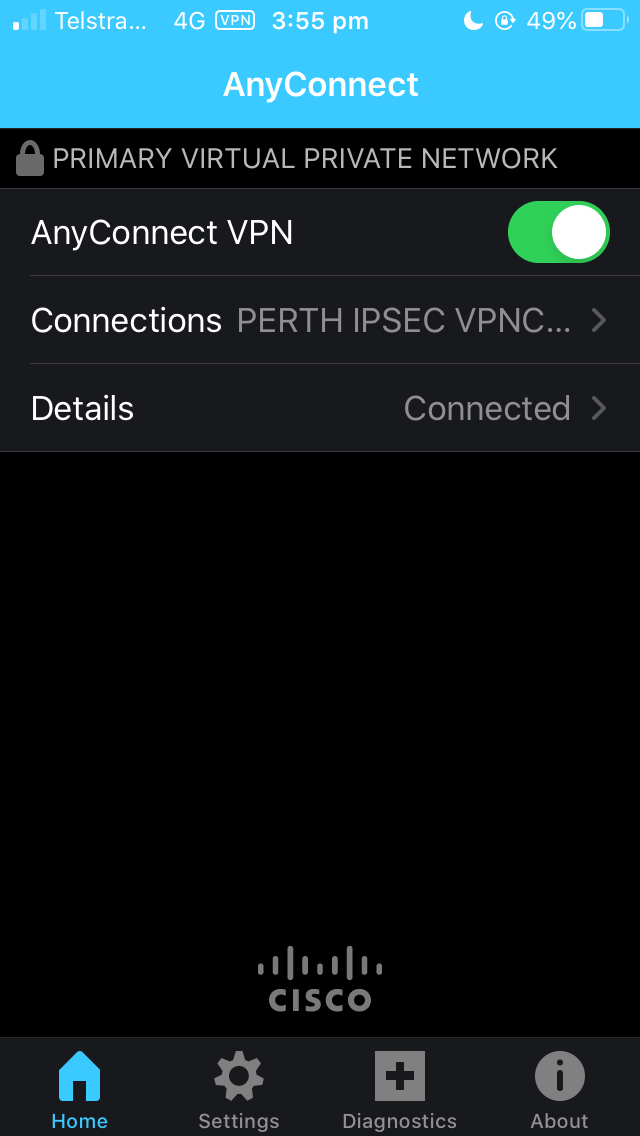
8. If your Home tab looks like the first image below, then you are now ready to connect the VPN. Enable the AnyConnect VPN by sliding this option setting to the right. Enter your VPN Username and Password when prompted.
8. If your Home tab looks like the first image below, then you are now ready to connect the VPN. Enable the AnyConnect VPN by sliding this option setting to the right. Enter your VPN Username and Password when prompted.
9. If you entered your credentials correctly after a few moments you will see your VPN status is Connected on the home screen.
DataImage19.png
DataImage83.png
DataImage83.png
DataImage75.png
DataImage40.png
DataImage40.png
DataImage40.png
DataImage40.png
DataImage40.png
DataImage4.png
DataImage4.png
DataImage21.png
DataImage84.png
DataImage84.png
DataImage84.png