How to Setup a New Exchange Profile in Microsoft Outlook with Autodiscovery
Creation date: 23/03/2021 3:19 PM
Updated: 23/03/2021 3:50 PM
This tutorial assumes you are using the CLOUD13 business email platform based on Microsoft Exchange and are running Microsoft Windows 2010 with Office 2010, Office 2013 or Office 2016.
1. Close Microsoft Outlook if you have the application.
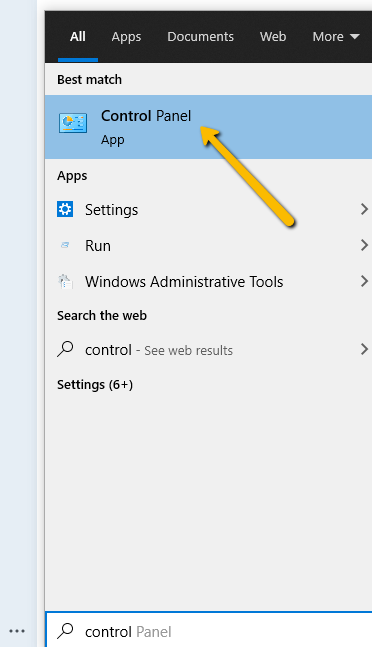
2. Open Windows Control Panel by clicking the Windows 10 Start button and type Control Panel. Select the application from the menu.
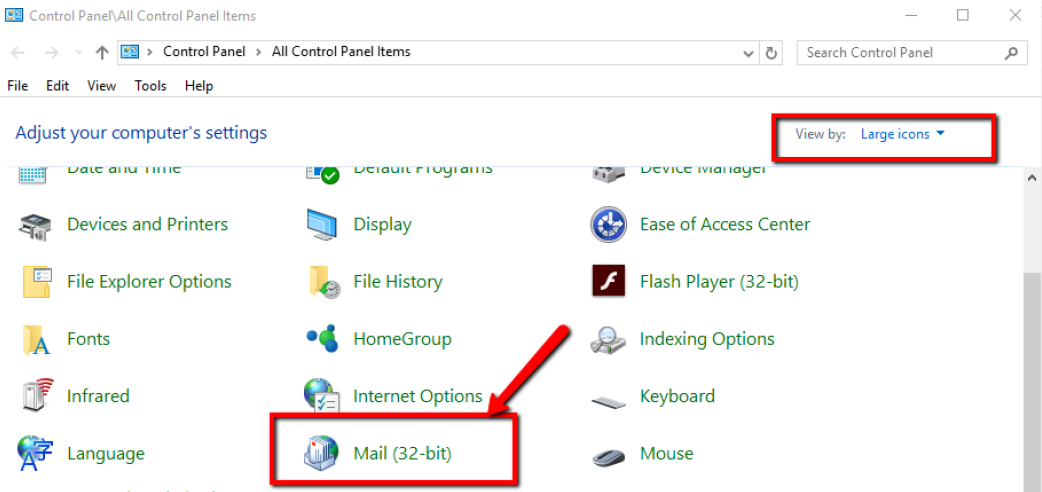
3. Once you have the Control Panel Open, make sure you have the Large Icons view by selecting the option in the top right corner. Then open the Mail setup application.
2. Open Windows Control Panel by clicking the Windows 10 Start button and type Control Panel. Select the application from the menu.
3. Once you have the Control Panel Open, make sure you have the Large Icons view by selecting the option in the top right corner. Then open the Mail setup application.
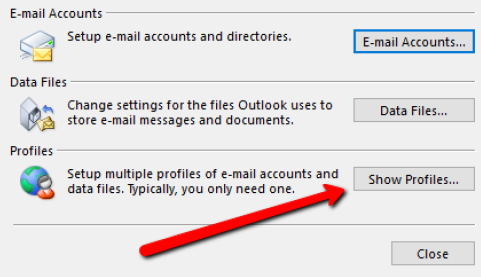
4. From the Mail Setup dialog window choose the Show Profiles button.
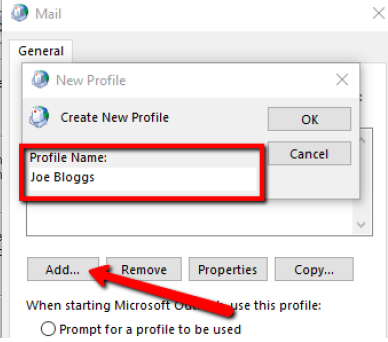
5. From the Mail dialog window choose the Add button and then type a name for your Outlook profile.
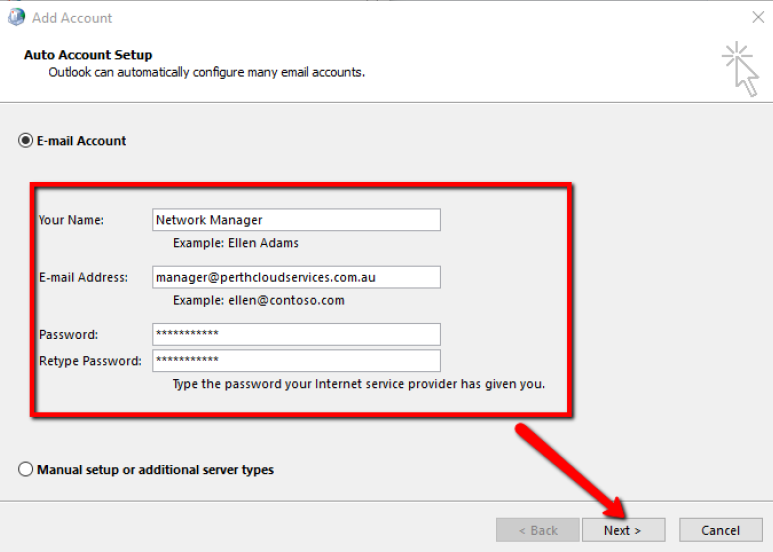
6. If your service is enabled for Outlook Auto-discovery you only need to type in your Name, Email Address and Password exactly as provided to you by the provisioning team. Select Next.
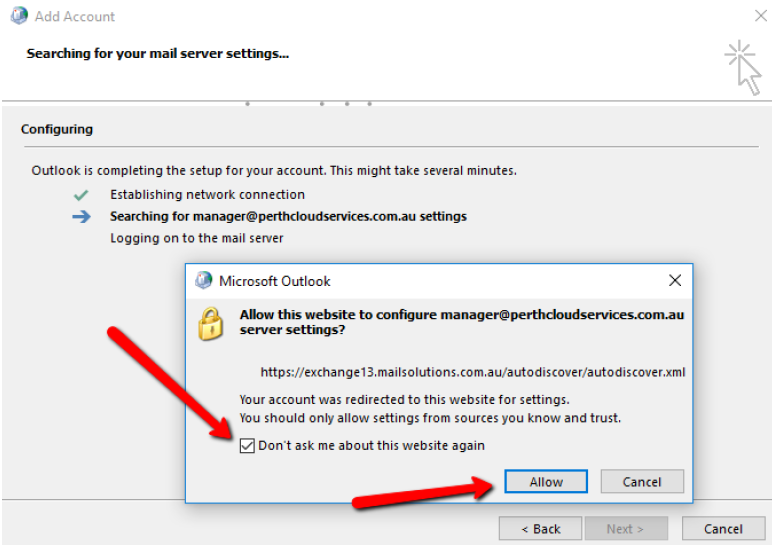
7. After about 30 seconds Outlook will ask your permission for the server to configure your mail account on your computer. Tick the 'Dont ask me about this again Checkbox, and then select Allow.
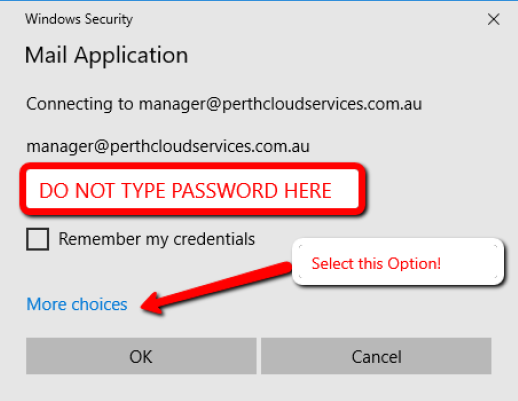
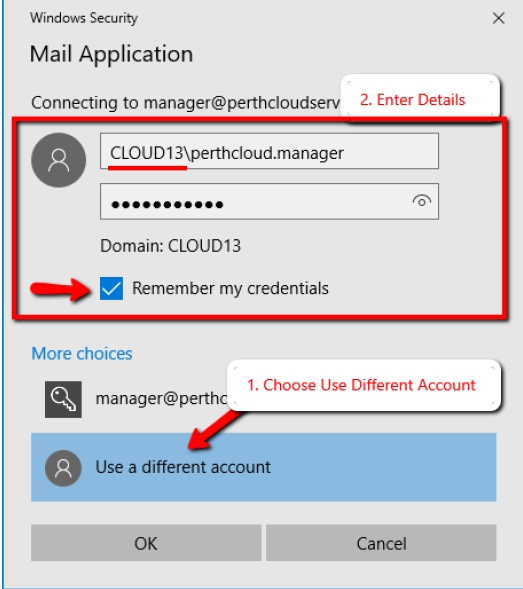
8. You will then be asked for your login details. DO NOT type your password underneath your email address. You must choose More Options and login using your actual username.
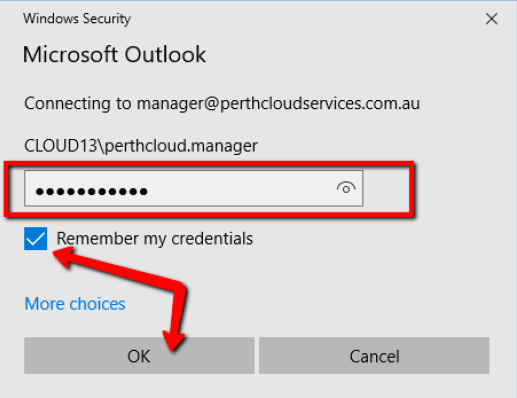
9. FIRST choose the Use a Different Account option. SECONDLY enter your Username in the format CLOUD13\username as provided by the provisioning team. Enter your Password and select the Remember my credentials checkbox. Click the OK button to continue.
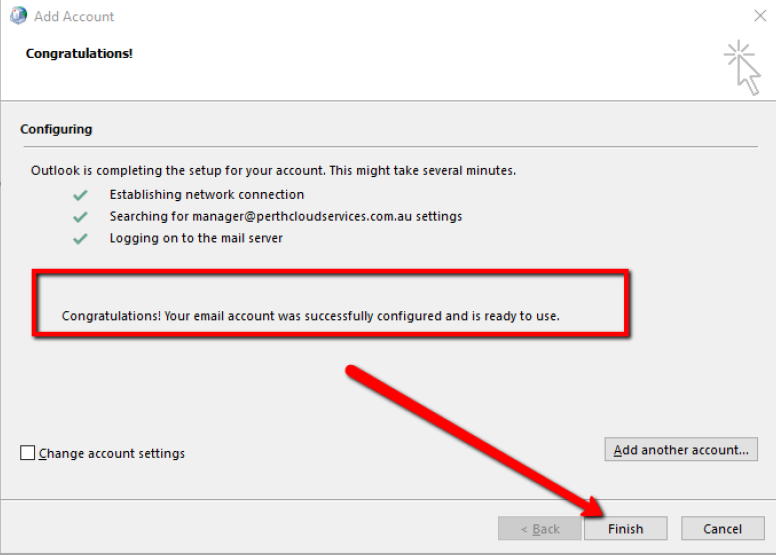
10. If your entered your login details correctly, you will see the following screen. Select Finish to continue.
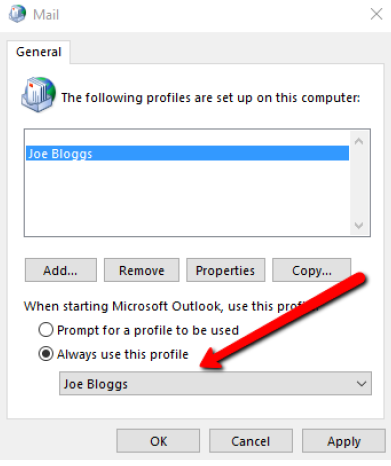
11. On the Mail dialog window. Verify Outlook will use your new email profile by choosing it from the Always use this profile menu. Click OK to finalise your setup.
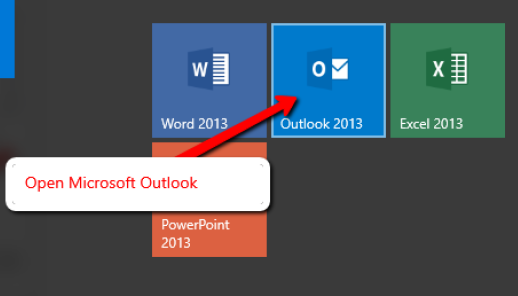
12. Open Microsoft Outlook from the start menu.
13. When you open Outlook for the first time, you will need to enter your Password again. Verify the user account is still in the CLOUD13\username format you created previously. Select the Remember by credentials checkbox and then select the OK button.
14. Congratulations! Your Microsoft Outlook is now configured to work with Microsoft Exchange.
DataImage81.png
DataImage81.png
DataImage89.png
DataImage25.png
DataImage25.png
DataImage25.png
DataImage25.png
DataImage61.png
DataImage61.png
DataImage61.png
DataImage61.png
DataImage45.png